


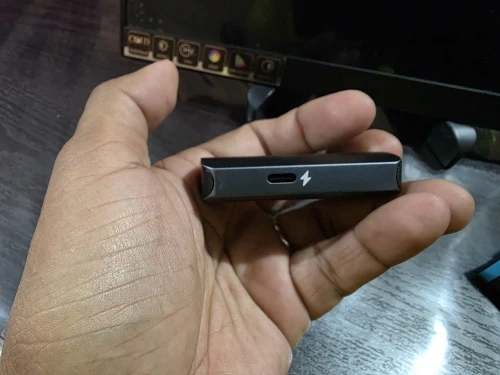
HDMI to USB-C Adapter 4K60Hz for AR Glasses, Nintendo Switch 2, PS5, Xbox & Steam Deck
ZEXENTA : RISE TRANSFORM THRIVE


HDMI to USB-C Adapter 4K60Hz for AR Glasses, Nintendo Switch 2, PS5, Xbox & Steam Deckt
Product Overview
Experience seamless connectivity between HDMI devices and USB-C displays with this HDMI to USB-C Adapter. Designed specifically for AR glasses and portable monitors, this converter supports up to 4K@60Hz resolution, delivering crisp visuals and smooth performance. It is compatible with popular devices such as XREAL Air, RayNeo, Rokid Air, Nintendo Switch Dock, Steam Deck Dock, PS4, PS5, Xbox, laptops, and portable displays.
Important: This adapter only supports HDMI to USB-C (Type-C) signal conversion and cannot be used in reverse.
Key Features
- Supports resolutions up to 4K@60Hz.
- Converts HDMI output to USB-C input.
- Designed for AR glasses and USB-C portable displays.
- Plug-and-play operation with no additional drivers required.
- Durable metal construction for improved heat dissipation and longevity.
- Compatible with gaming consoles, laptops, TV boxes, and multimedia devices.
Specifications
| Specification | Details |
|---|---|
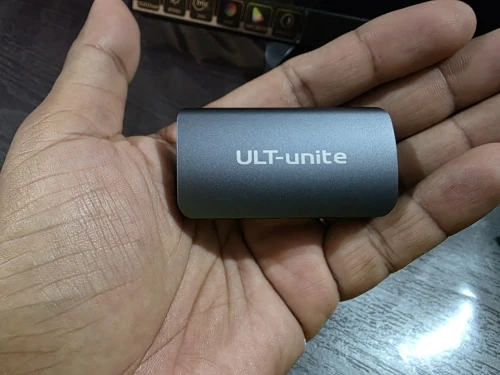
| Brand | ULT-unite |
| Model | S4081-0119 |
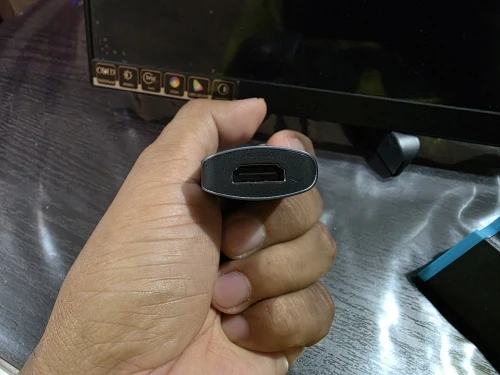
| Product Type | HDMI to USB-C Adapter |
| Connector A | HDMI Female |
| Connector B | USB Type-C Female |
| Resolution | Up to 4K@60Hz |
| Material | Metal |
| Certification | CE, FCC, KC |
| Package | Polybag |
| Origin | Mainland China |
Compatibility
Compatible with:
- XREAL Air Series
- RayNeo AR Glasses
- Rokid Air
- Thunderbird AR
- GRAWOOA
- Nintendo Switch Dock and Switch 2 Dock
- Steam Deck Dock
- PS4 and PS5
- Xbox Consoles
- Laptops and Desktop PCs
- TV Boxes
- Portable USB-C Displays
Connection Instructions
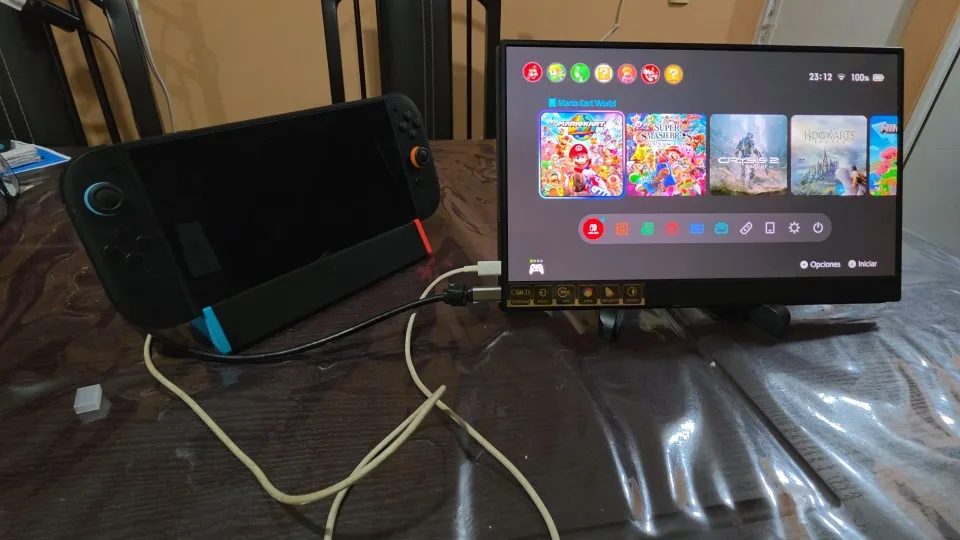
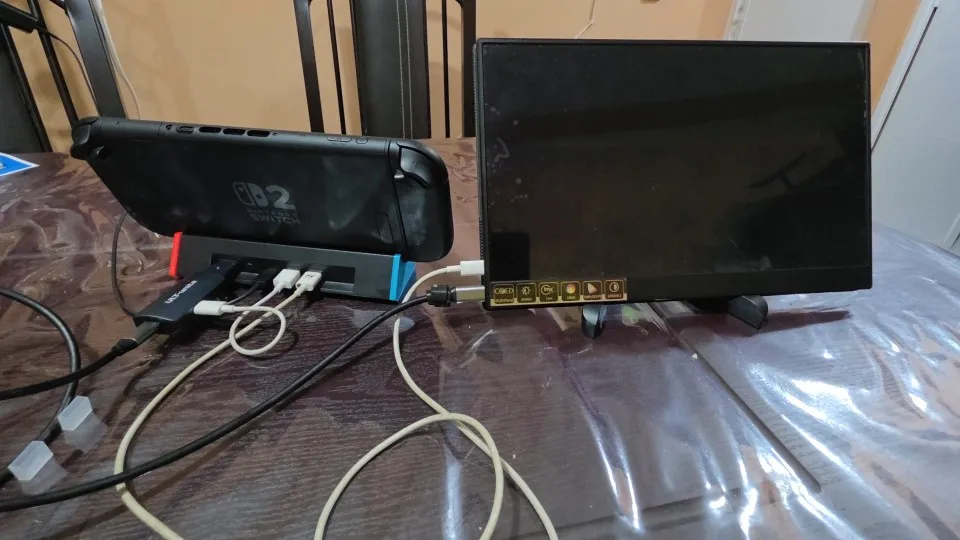
Nintendo Switch 2 Dock
- Connect the adapter to the HDMI port of the Switch 2 Dock.
- Connect the AR glasses to the adapter's USB-C port.
- Power the dock using the original Nintendo charger.
- Activate TV mode before connecting the adapter.
- Remove the controllers to operate the game.
XREAL AR Glasses with PC, Laptop, PS4, PS5, or TV Box
- Connect the HDMI source device to the adapter.
- Connect the included USB-A power cable to an external power source.
- Connect the XREAL glasses to the adapter's USB-C port.
Note: Do not power the adapter from the USB port of the HDMI source device, as it may provide insufficient power.
Portable Monitor Connection
- Connect the included Type-C power cable to the adapter first.
- Power the adapter using an external power source.
- Connect the HDMI source device.
- Finally, connect the portable monitor.
Audio Setup for XREAL Glasses
If there is no sound:
- Update the XREAL glasses to the latest firmware using the XREAL app.
- Press and hold the Brightness (-) button until it rings once.
- Press and hold the Brightness (+) button until it rings twice.
- Wait one second for audio and video to activate simultaneously.
- Repeat this process after each reconnection if necessary.
- Ensure the HDMI source device's audio output is set to headphones or external peripherals.
Important Notes
- Supports HDMI → USB-C only; reverse conversion is not supported.
- Not compatible with all Meta series devices.
- RayNeo Air 2S does not support 120Hz through HDMI output.
- Do not use an Apple charger to power the adapter.
- If the display does not appear, reconnect the adapter and check all connections.
- Some devices may require reconnecting several times for proper detection.
Package Includes
- 1 × HDMI to USB-C Adapter
Delivery within 7-14 days.
Shipping as fast as possible
Shipping as fast as possible
Please contact if you have a question!
100% satisfaction guaranteed
100% satisfaction guaranteed
Product by Zexenta


